
Did you know you have the power to add a Copilot watermark to all images you generate with Copilot within Microsoft 365?
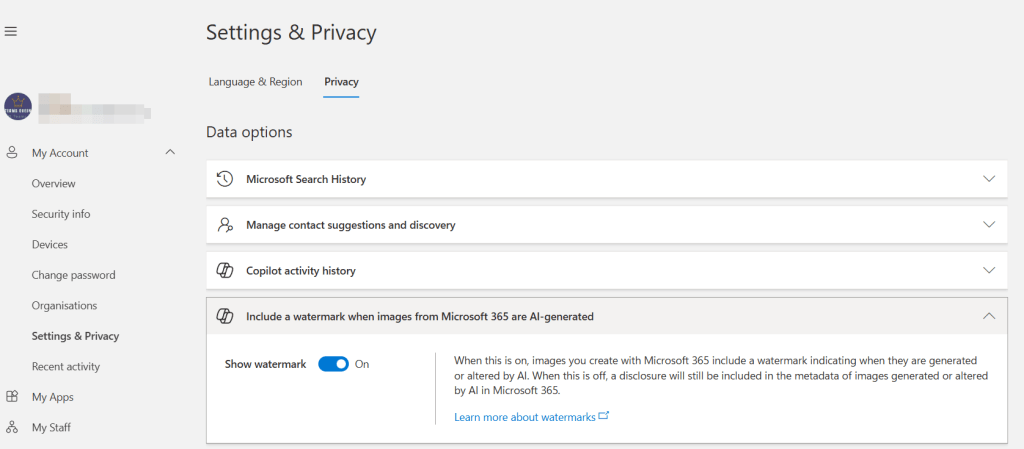
It’s really simple and in your control. To turn it on go to https://myaccount.microsoft.com/, select Settings & Privacy then the Privacy tab and you’ll find the Include a watermark when images from Microsoft 365 are AI-generated. Turn on the setting. That’s it!
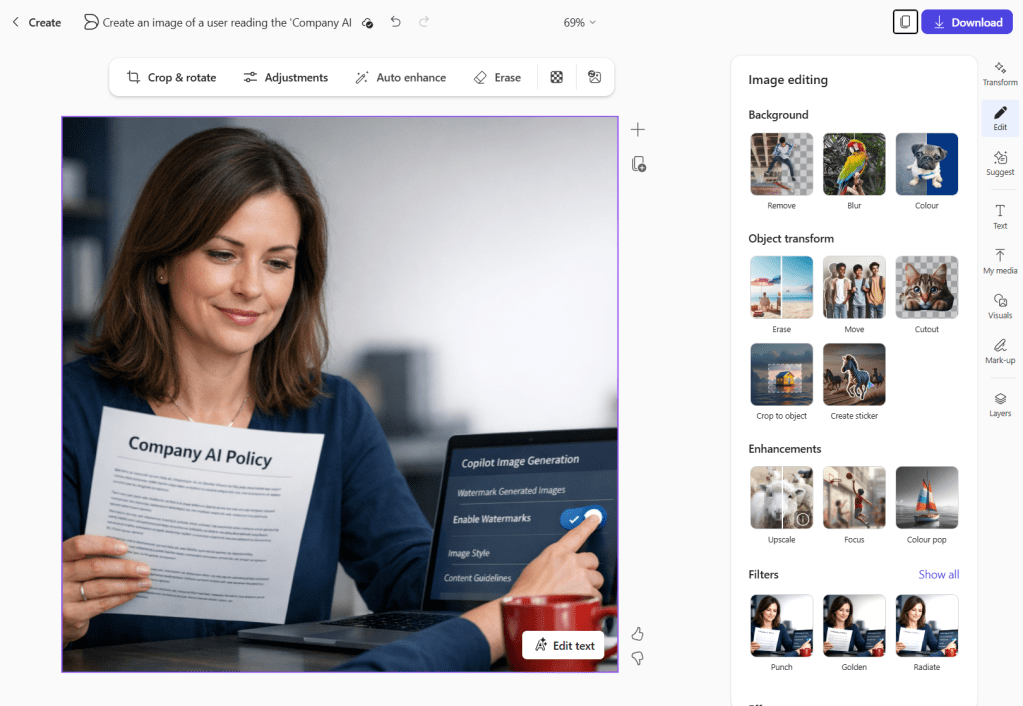
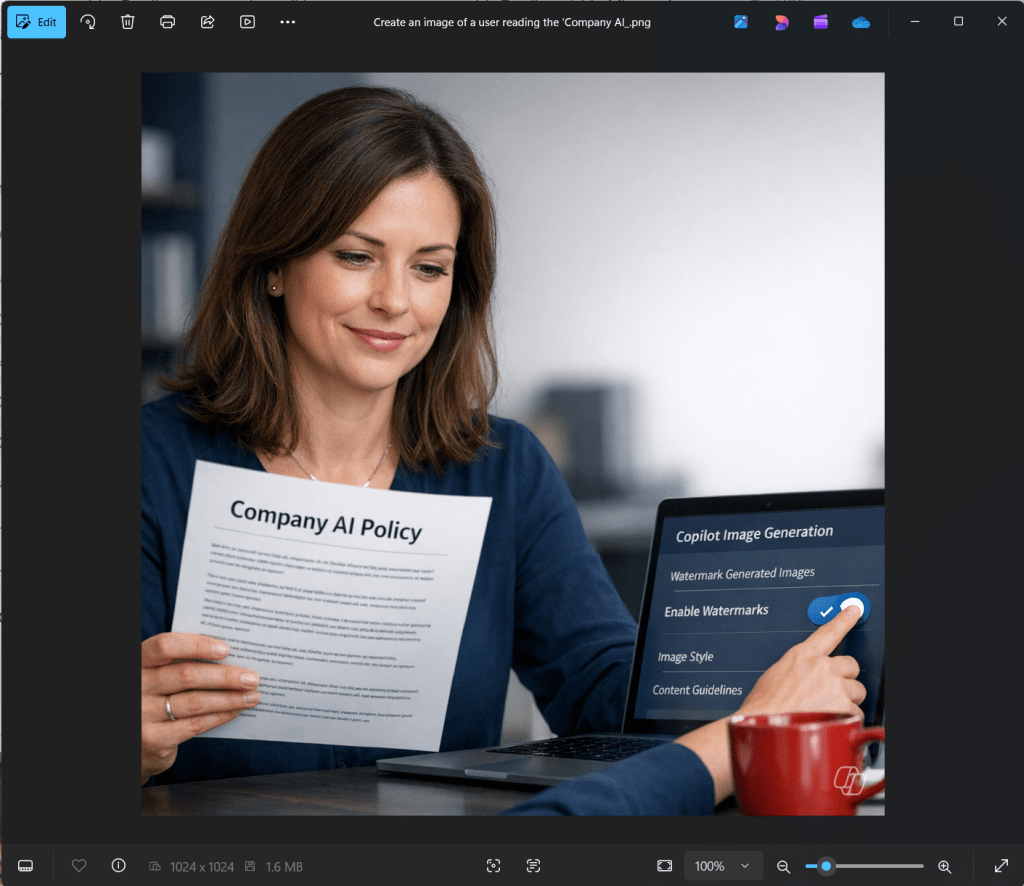
WHen you create or are editing the image in Copilot Create, the watermark will not show, but download or copy and paste and you’ll see a little Copilot icon in the bottom corner
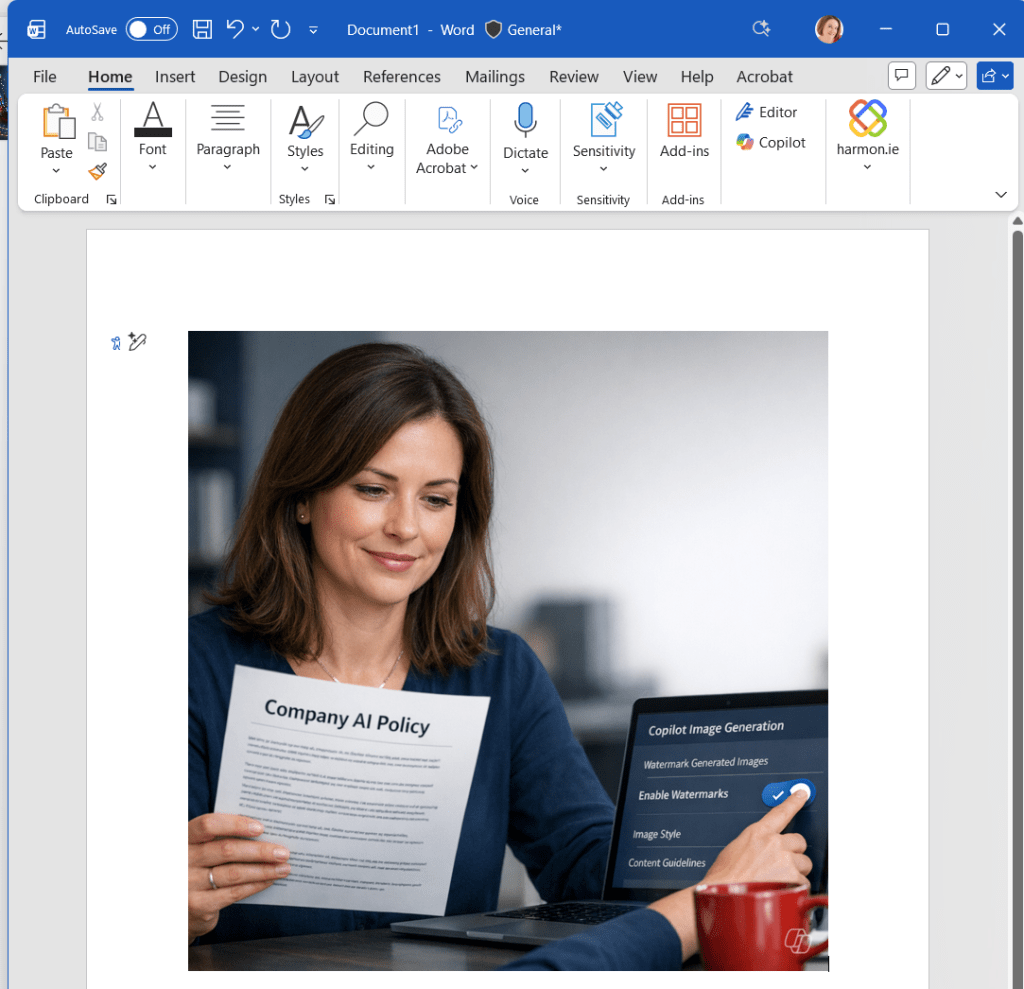
My Scottish vineyard image was created in Word using the Designer agent in Word, which doesn’t seem to have applied the watermark yet, so further testing is needed on where the watermark is applied and is not.

 Copilot Queen Blog