
Since Microsoft first announced the easy create Copilot agent feature in SharePoint which would be available under the Create a Copilot agent button in SharePoint libraries, I’ve been eagerly awaiting the oppotunity to try it out. Today I noticed it in my tenant for the first time. The process to create is super intuitive, but I found a few things a little confusing. Such as why the agent didnt appear in Business Chat and where I could access my agent.
In this blog I’ll set out a few basic things you need to understand with Copilot in SharePoint and then walk you through my first agent.
Foundational Knowledge
Copilot in SharePoint and Copilot agents in SharePoint require Microsoft 365 Copilot license.
Each SharePoint site has a default out-of-the-box Copilot enabled and this cannot be edited or customised. However this default site agent will be very helpful in allowing users to work with Copilot limited to a single site.
The default site Copilot and any custom Copilot agents are accessed via the Copilot button on the title bar. Click the drop down arrow in the side pane, next to the title of the Copilot to switch between site default and any custom agents.
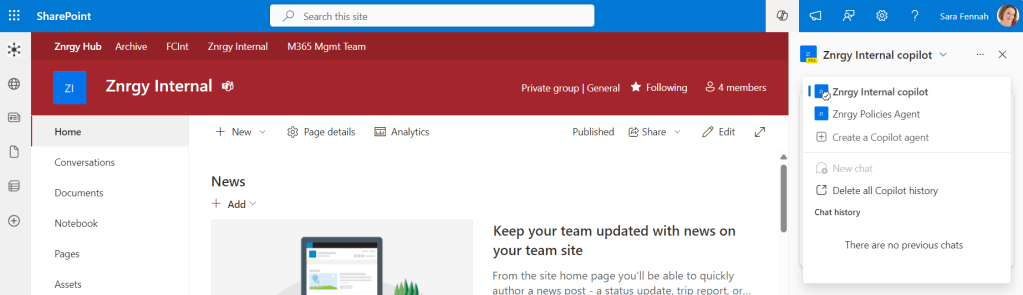
Custom agents do not show up on the main Copilot Business Chat. Though it seems this is a temporary limitation. The FAQ on support site says “You can access a Copilot agent from a SharePoint site, page, or document library. You can also use it in Teams if added. We plan to make it available across Microsoft 365, including Microsoft Copilot.” https://support.microsoft.com/en-us/office/get-started-with-copilot-agents-in-sharepoint-69e2faf9-2c1e-4baa-8305-23e625021bcf
Creating a Custom Copilot Agent in SharePoint
Once your tenant is enabled, on visiting any SharePoint site you can edit you will see the announcement screens


When you click Open agent button, it opens the Copilot pane.
To create a custom Copilot agent:
- First navigate to the site and library you wish to create an agent from. It’s easiest to start within one Library but possible to add up to 20 things as information sources. By ‘things’ I mean sites, libraries, folders, documents. You can mix and match these ‘things’ but still with a limit of 20 of them. So 20 sites or 2 sites, 3 libraries, 10 folders and 5 documents would both be possible.
- Select the items to use to create the agent and click the Create a Copilot agent button

- Click the Edit button to customise the default settings
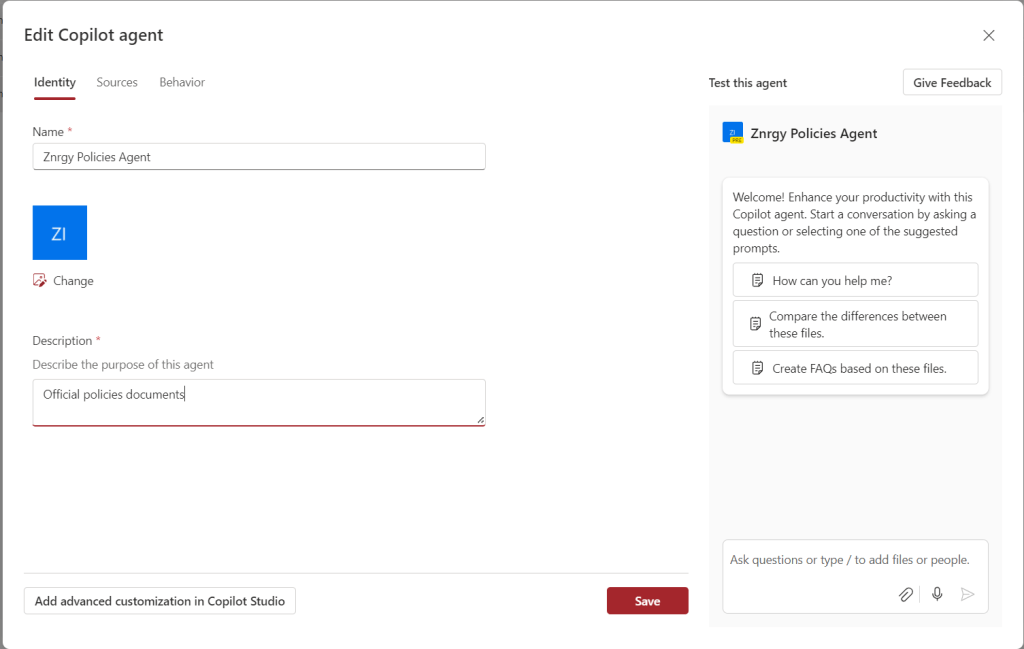
- In the Identity screen customise the name, icon and description of your Copilot agent
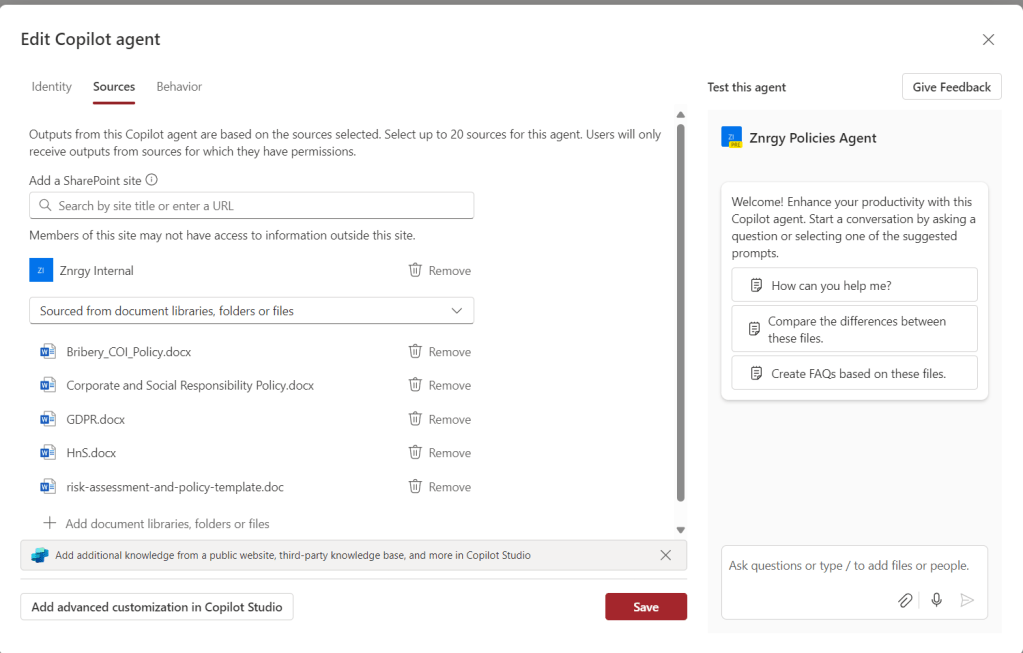
- In the Sources screen you can customise the sources for the agent, adding or removing sites, libraries, files or folders.
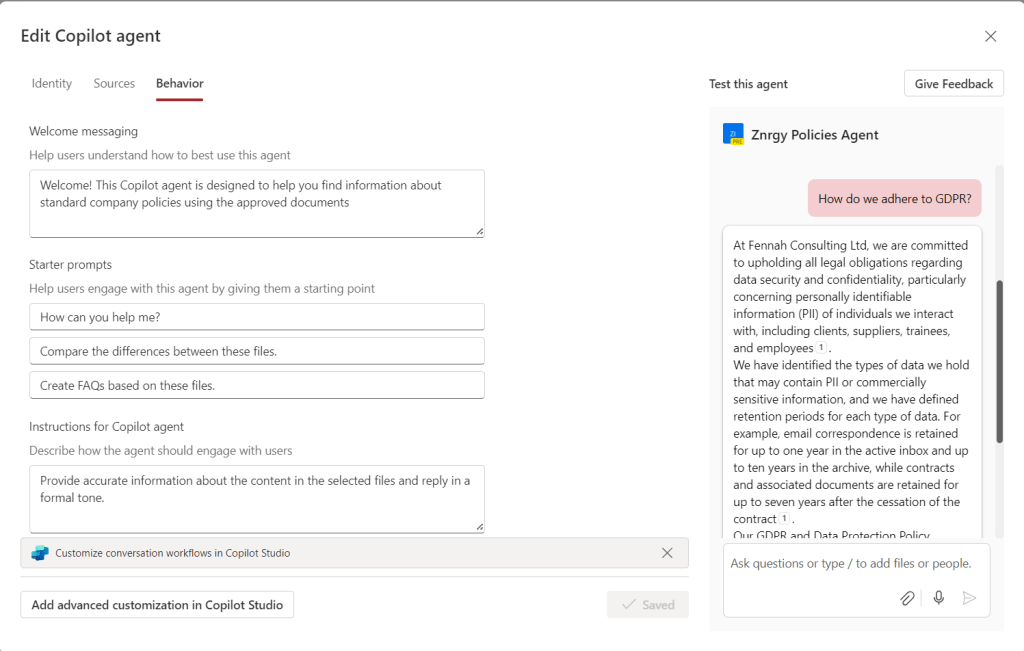
- In the Behaviour screen you can create a welcome message to help users understand the purpose of this Copilot agent, customise the three starter prompts and write instructions to the agents on how it should behave including langugage tone to use in responses.

- On all scrren is a Test this agent pane to try out the agent and verify the settings you’ve input.
- Click Save to create the agent.
- You’ll notice a new file added to the library you started in. A .copilot file.

- The agent is now available for use in the Copilot pane

- You can return to the editing boxes by selecting Edit from the … menu at the top of your custom Copilot agent.

Next Steps
Next up, I’m going to read the guidance properly and make sure I haven’t missed anything. On a quick read it seems like the next step will be making sure all ‘official’ agents are moved to the correct location to show as approved agents so they have the checkmark on the logo.
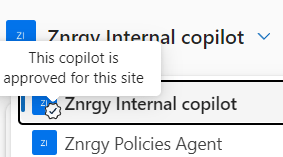
The significance of this checkmark will need to be clearly communicated to users so they understand which agent to use.
Another really important piece of guidance for users will be how to access the Copilot agents from within SharePoint and that they do not need to create a custom agent in every site as the sites now each have their own dedicated Copilot out-of-the-box.


One response to “My First Copilot Agent in SharePoint”
[…] which I am going to talk about in this blog, was the SharePoint Agents. I first read about it in Sara Fennah’s blog where she discusses the same topic / use […]
LikeLike