
As the working week wound down on Friday Copilot memory started to appear in many Microsoft 365 tenants. So, of course, I had to have a play.
The new Copilot memory feature allows it to retain useful information about you (your preferences, your style, your goals) so it can offer more tailored responses. It’s not about storing everything, but rather remembering the things that help it help you better.
As a trainer I love motto “Never Stop Learning” so, I’m always looking for ways to make my use of the tools smarter and easier so I can, in turn, use that to help the people I train.
The Tech Community article announcing the Copilot memory feature suggested two prompts to help set up Copilot memory.
- Ask me 5 questions to learn more about my writing style
- Ask me 10 questions about myself to get to know me better
Liking the idea of deliberately chatting with Copilot to set up memory I decided to try my own prompt first and see what Copilot could discover about me, my style and my way of working before manually adding information I wanted it to store. My first prompt was:
Based on my previous Copilot chats, files and emails, please suggest key details which you think would be useful for me to store in Copilot Memory
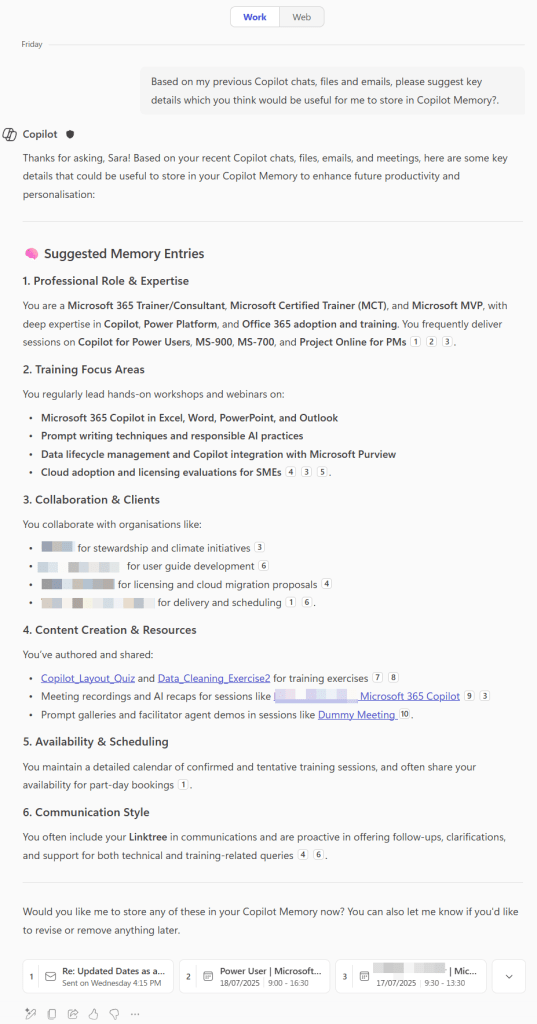
Whilst it got many things spot on, some of the details could be a little misleading. To fix this before telling Copilot to remember this I decided to continue the conversation and correct the details using the prompt:
Based on this information, please ask me up to 10 questions one at a time to verify this information and fill in any gaps
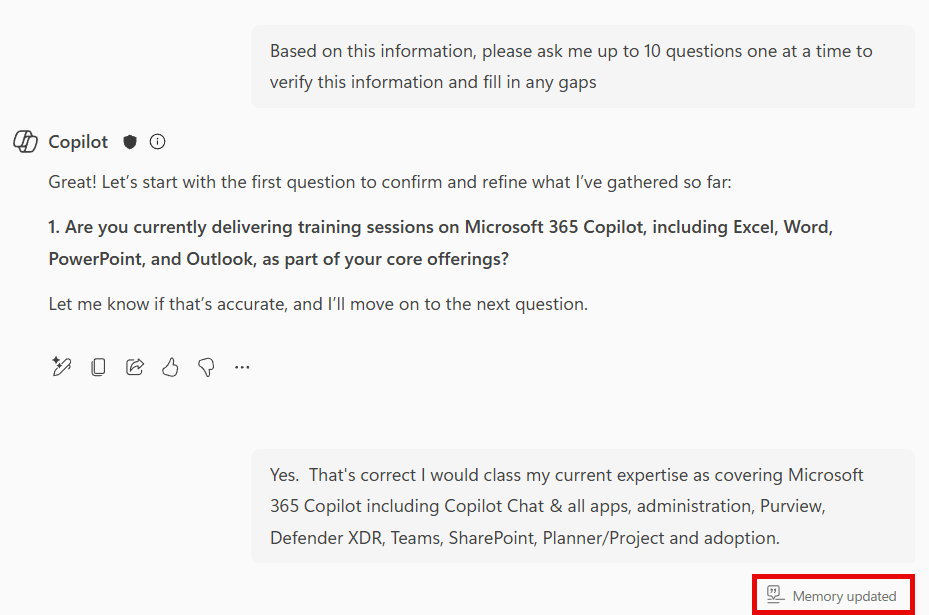
As I answered, Copilot stored the details in memory and indicated such with the Memory updated annotation on the post.
I then used the two suggested prompts and proceeded to answer them, even though I felt it probably covered similar ground to the conversation I’d already had with Copilot.
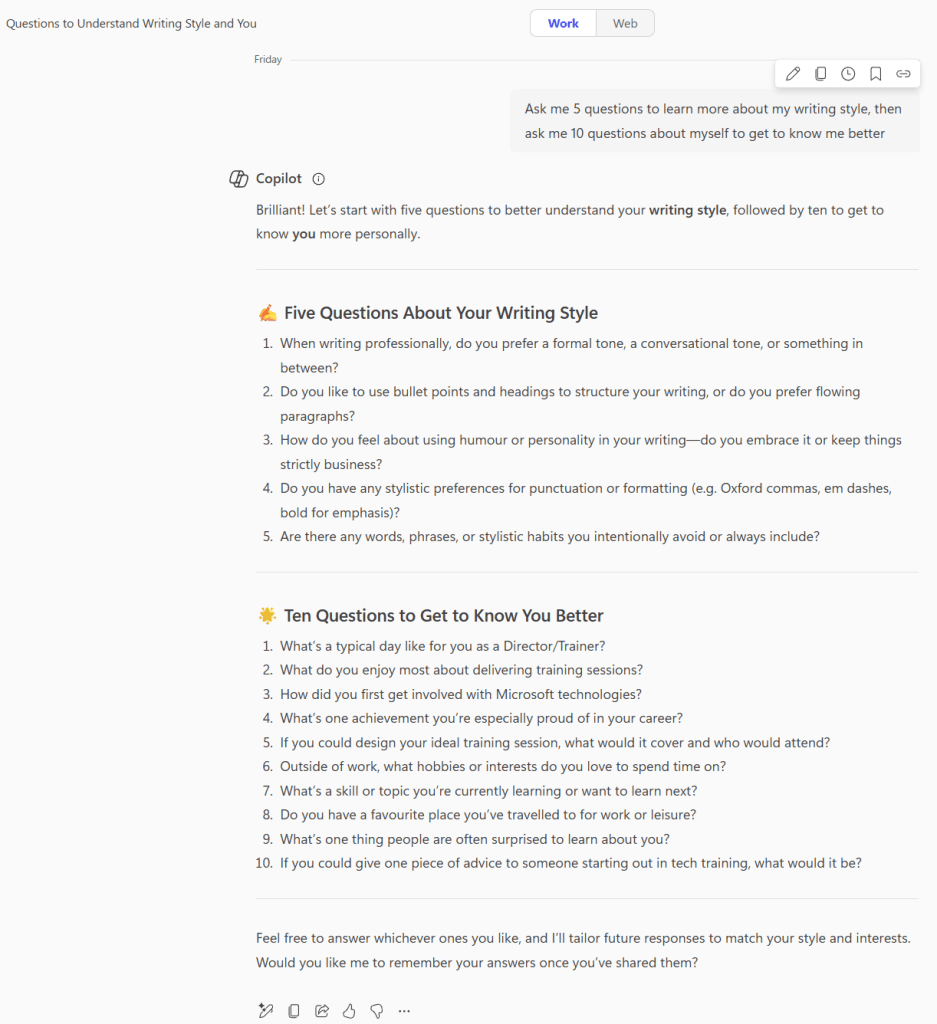
Again my answers were stored as shown by the Memory Updated tag. So then it was time to check what Copilot had learnt and stored.
In Copilot Chat, select the … menu at the top right and choose Settings, where you will find the Copilot Memory under Personalisation and can see what Copilot has stored. You can selectively delete each memory, turn Copilot memory off completely or clear all stored information.
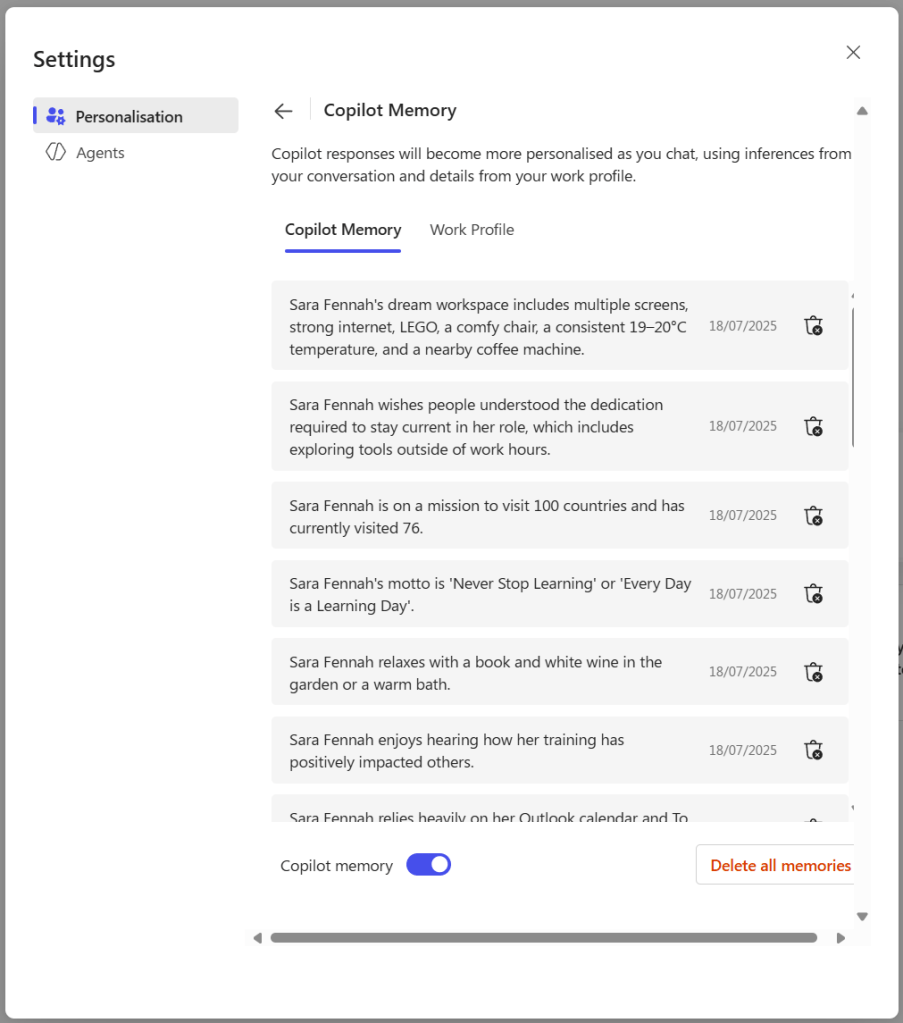
So now, I just need to use Copilot and work out if the memory features makes Copilot even more useful. I’ll report back soon.
 Copilot Queen Blog