
The scenario: I created a spreadsheet a few years ago and it has grown organically. It really is time to refresh the formulas and charts and tidy up the data, formatting etc. as the file is becoming too big to work efficiently. Unfortunately I can’t remember the logic behind some of the formulas I have used.
Copilot in Excel can help.
select the cell and from Copilot icon by the cell choose Explain this formula. Copilot will then generate an explaination of how the formula works.
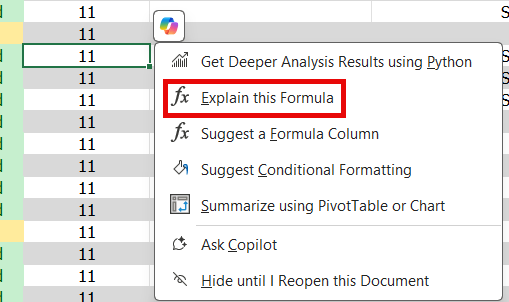

This result is from a relatively simple formula. So let’s try something a bit more complex.
In this example the formula is evaluating the status and description of a booking to determine if I have capacity on a day or not, to give a simple list I can filter/read at a glance. I use the terms (AM) and (PM) in the description to indiciate a part day, hence the criteria is looking for the letter M followed by ) to pick up both AM & PM. I confess it took me a few minutes to remember what my aim was with the “M)” criteria in the formula!

Here’s the full Copilot explanation from the above image:
This formula evaluates the content of the “Description” column in the current row of the “Diary_List” table and determines the availability status based on specific conditions. Here’s how it works:
Formula:
=IF(ISNUMBER(SEARCH(“M)”,[@Description])),IF(R130=”Not Available”,IF(ISNUMBER(SEARCH(“M),”, [@Description])),”Mixed”,”Partially Available”),R130),R130)
Explanation:
1. Outer IF Condition:
• ISNUMBER(SEARCH(“M)”,[@Description])):
• Checks if the text “M)” exists in the “Description” column of the current row.
• If “M)” is found, the formula proceeds to the next condition. If not, it directly returns the value of R130.
2. Inner IF Condition (if “M)” is found):
• IF(R130=”Not Available”, …):
• Checks if the value in cell R130 is “Not Available”.
• If R130 equals “Not Available”, it evaluates the next condition. Otherwise, it simply returns the value of R130.
3. Nested IF Condition (if R130=”Not Available”):
• ISNUMBER(SEARCH(“M),”, [@Description])):
• Checks if the text “M),” exists in the “Description” column of the current row.
• If “M),” is found, it returns “Mixed”.
• If “M),” is not found, it returns “Partially Available”.
4. Default Return:
• If none of the conditions are met, the formula returns the value of R130.
Summary:
• If “M)” is found in the “Description” column:
• If R130 is “Not Available”:
• If “M),” is also found in the “Description” column, it returns “Mixed”.
• Otherwise, it returns “Partially Available”.
• If R130 is not “Not Available”, it returns the value of R130.
• If “M)” is not found in the “Description” column, it directly returns the value of R130.
 Copilot Queen Blog