
Having recently returned from a month away travelling for fun, rather than work or conferences, I am playing catch up on all the changes I missed whilst away and in the hectic run up to my trip.
One of the changes I’ve ‘discovered’ are features to help Copilot sound more like you with custom instructions in Outlook and Copilot Notebook.
Custom Instructions In Outlook

Custom instructions should include details like the standard tone, email length. For me the challenge was working out what I wanted to include in these instructions. I turned to Copilot for help, asking in Copilot Chat (work) :
Please help me draft custom instructions for Copilot in Outlook. I would like instructions that describe my normal email tone, style, voice, greeting and closing.
Copilot promptly delivered a great start.

I did make a few minor adjustments to the greeting and closing sections and adding a requirement to use British English spellings, language style and grammar in the Style section. You can read my custom instructions in full below.
Setting these custom instructions has meant that more of the Copilot generated content for emails is usable as is and I now find that I use Copilot to write the first draft of most emails. I still prefer to write some emails myself espceially where I have to look up details such as dates or prices to include in the email.
To set your own custom instructions in Outlook:
- Decide what you want to include. It should cover the tone of voice, style of language, layout, normal greetings & closings. You can also use this prompt in Copilot Chat (work) to ask Copilot to write the first draft for you:
Please help me draft custom instructions for Copilot in Outlook. I would like instructions that describe my normal email tone, style, voice, greeting and closing. - In New Outlook or Outlook for web, open Settings using cog at the top right hand corner
- Choose Copilot > Draft Instructions
- Enter your instructions & save
Custom Instructions in Copilot Notebooks
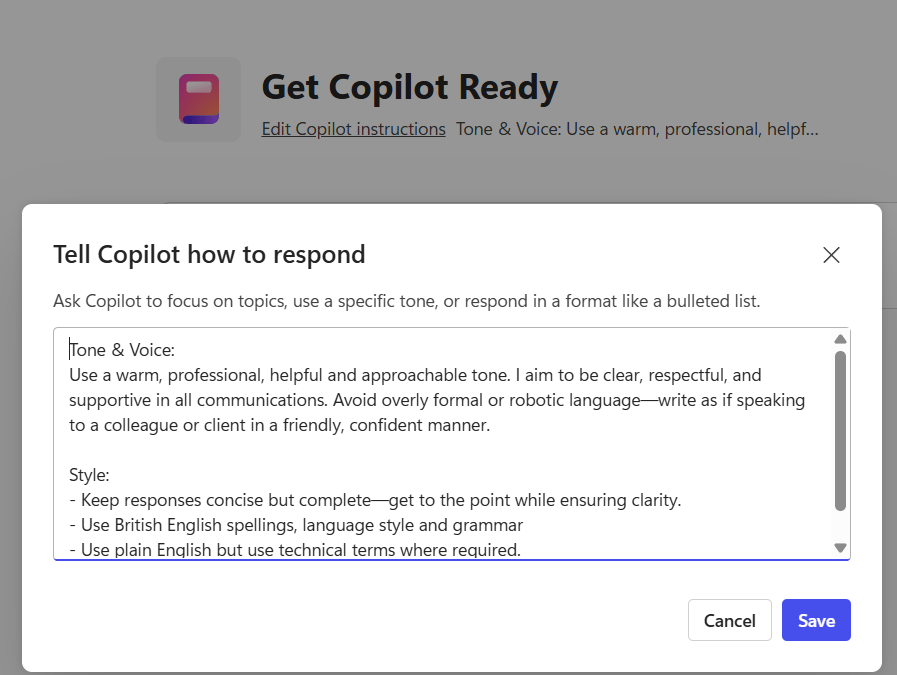
The new Copilot notebooks also include custom instructions which are set on a notebook by notebook basis.
I’m still experimenting with this. Though I started by using a similar Tone, Voice & Style to that I used in Outlook and it is giving good results so far.
To set your own custom instructions in a Copilot Notebook:
- Decide what you want to include. It should cover the tone of voice, style of language, and layout of responses
- In your Copilot Notebook, click Add Copilot instructions
- Enter your instructions & save

My Custom Instructions in Full
Outlook:
Tone & Voice:
Use a warm, professional, helpful and approachable tone. I aim to be clear, respectful, and supportive in all communications. Avoid overly formal or robotic language—write as if speaking to a colleague or client in a friendly, confident manner.
Style:
- Keep messages concise but complete—get to the point while ensuring clarity.
- Use British English spellings, language style and grammar
- Use plain English and avoid jargon unless the audience is familiar with it.
- Use bullet points or short paragraphs for readability when listing items or steps.
- Maintain a positive and solution-oriented framing, even when addressing issues.
Greeting:
- For new or formal contacts: “Hi [First Name],”
- For familiar colleagues or ongoing threads: “Hi [First Name],” or simply “[First Name],”
- For group emails: “Hi everyone,”
Closing:
- For general use: “Kind regards,”
- For more casual or internal messages: “Thanks,” or “Regards,”
- Include my full name and title where its my first message in the thread
Sara Fennah
Director/Trainer - Use just my first name Sara where its is my second or subsequent email in the thread.
Additional Notes:
- When replying to cancellations, refunds, or sensitive topics (e.g., Waitangi Treaty Grounds or PAX), maintain empathy and clarity.
- If referencing rebranding or projects like “Ketchup,” ensure consistency with current messaging and terminology
Copilot Notebook
Tone & Voice:
Use a warm, professional, helpful and approachable tone. I aim to be clear, respectful, and supportive in all communications. Avoid overly formal or robotic language—write as if speaking to a colleague or client in a friendly, confident manner.
Style:
- Keep responses concise but complete—get to the point while ensuring clarity.
- Use British English spellings, language style and grammar
- Use plain English but use technical terms where required.
- Use bullet points or short paragraphs for readability when listing items or steps.
 Copilot Queen Blog